Generate a Favicon From an SVG File
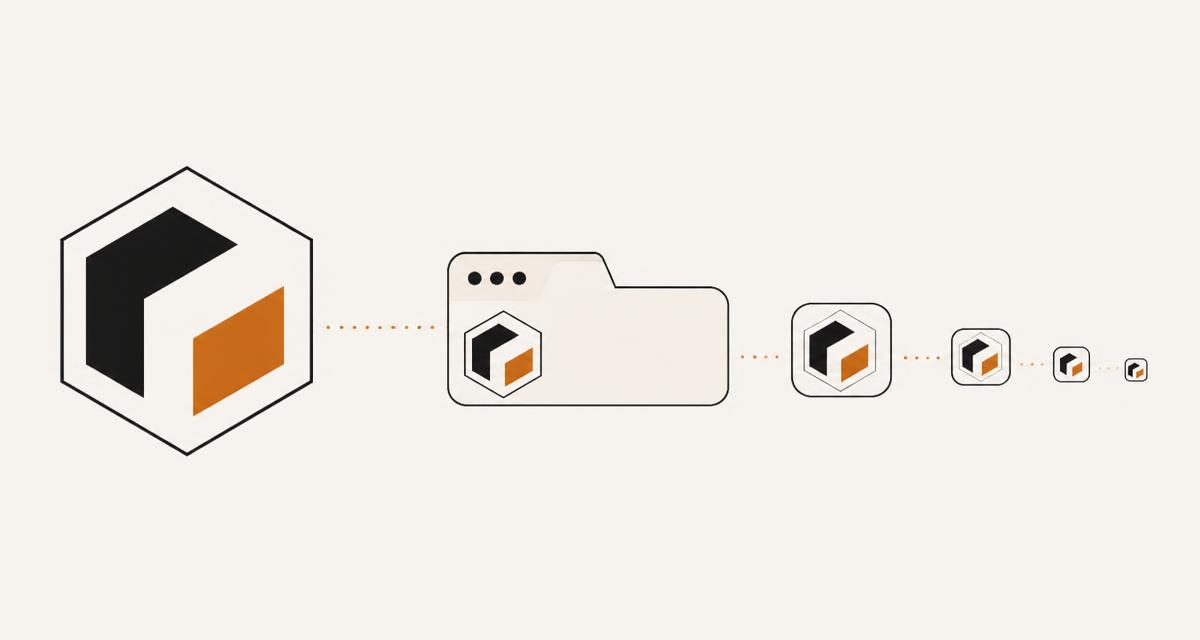
A modern favicon setup involves more files than most developers expect: an ico for legacy support, several PNG sizes, an apple touch icon, an SVG favicon and manifest icons for installable web apps. This post lays out the full set, how to generate each one from a single source SVG, and how to avoid the caching problems that plague favicon updates. The PNG export options on /flags follow the same size-from-SVG conversion approach described here.
The modern favicon set
A thorough favicon setup includes favicon.ico for very old browsers and some search engine crawlers that still request it by default, a 32 pixel PNG for the browser tab in modern browsers, a 180 pixel PNG named apple-touch-icon for iOS home screen shortcuts, an SVG favicon that scales cleanly and can respond to prefers-color-scheme, and 192 and 512 pixel PNGs referenced from a web app manifest for installable progressive web apps on Android and desktop.
Not every project needs every size. A simple blog can get away with an SVG favicon plus a 32 pixel PNG fallback, while an installable app needs the full manifest set.
favicon.ico as legacy support
The ico format can contain multiple embedded bitmap sizes in one file, historically 16 and 32 pixels, and browsers pick the size they need. Very few current browsers strictly require it, since they will happily use a PNG or SVG favicon referenced through a link tag, but some crawlers and older tooling still request /favicon.ico directly at the site root regardless of what link tags are present, so keeping one there avoids a stray 404 in server logs.
Generating an ico from an SVG means rasterising it to the required bitmap sizes first and then packaging those bitmaps into the ico container format, which most favicon generator tools handle as a single step.
PNG sizes and the SVG favicon
Rasterising the source SVG to a 32 pixel PNG for browser tabs and a 180 pixel PNG for the apple-touch-icon uses the same canvas and Image technique described for general SVG to PNG conversion: draw the SVG onto a canvas sized to the target resolution and export it as a PNG blob. Since favicons are viewed extremely small, this rasterisation step is exactly where simplified, high-contrast source artwork matters most.
Modern browsers that support SVG favicons directly will use a link tag with type image/svg+xml, and Safari and Chrome now support prefers-color-scheme inside that SVG file itself, letting the icon flip between a light and dark variant automatically based on the user's system theme, all from one file.
Manifest icons at 192 and 512
A web app manifest file lists icon entries with their sizes and paths, and the two sizes conventionally provided are 192 pixels for general home screen and launcher use and 512 pixels for splash screens and higher density displays. Some platforms also want a maskable variant, where the artwork is designed with extra padding so that when the operating system crops the icon into a circle or rounded square shape, no important content is cut off.
Both sizes should be generated from the same source SVG as everything else, keeping the visual design consistent across the browser tab, the home screen icon and the splash screen.
Safe-area design for tiny sizes
Detail that reads clearly at 512 pixels frequently turns to mush at 16 or 32 pixels, so favicon artwork needs to be designed, or at least simplified, specifically with the smallest size in mind. Thin lines, small text and fine gradients tend to disappear or become noisy blur at tab-icon scale, while a bold, simple shape with strong colour contrast remains legible.
A practical habit is to preview the rasterised 16 and 32 pixel PNGs at actual size next to a real browser tab before finalising the design, rather than judging the icon only at the size it was drawn at.
Link tag order and attributes
Browsers process favicon link tags in document order and some pick the first matching tag rather than the best matching one, so put the most specific and most capable format first, typically the SVG favicon, followed by the PNG fallback with an explicit sizes attribute, followed by the ico as a final fallback, followed by the apple-touch-icon link with rel apple-touch-icon and no type attribute since Apple does not use it.
- SVG favicon first with type image/svg+xml
- PNG fallback with rel icon, type image/png and a sizes attribute
- favicon.ico last among the standard icon links, or omitted from link tags entirely and left at the site root
- apple-touch-icon as a separate rel value, sized 180 pixels
Caching problems and how to bust them
Favicons are cached aggressively by browsers, often more aggressively than regular page assets, and updating the file at the same URL frequently shows the old icon for days even after a hard refresh of the page itself. The reliable fix is to change the URL when the icon changes, either by adding a version query string such as favicon.svg?v=2 or by renaming the file entirely, since a new URL cannot be served from the old cache entry.
Some browsers additionally cache favicons per profile independently of the regular HTTP cache, so a version query string in the URL is the more dependable option compared with relying on cache-control headers alone.
A worked example: generating the full set from one file
Starting from a single source SVG, a build script or online generator typically produces, in order: a 16 and 32 pixel PNG combined into favicon.ico, a standalone 32 pixel favicon.png, a 180 pixel apple-touch-icon.png, a copy of the source as favicon.svg, and 192 and 512 pixel PNGs referenced from site.webmanifest. Each raster size is produced by drawing the SVG onto a canvas at that exact pixel size rather than by scaling down a single large PNG, since scaling a large raster image down in a browser or image tool loses the sharp edges that rasterising directly from the vector source preserves.
Once every file exists, the HTML head needs one link tag per format, plus a link to the manifest itself, and the manifest JSON needs an icons array listing each PNG with its size and MIME type so installable browsers know which file to use for which purpose.
Browser and platform support
SVG favicons are supported in Chrome, Firefox and Safari, though older Safari versions before the SVG favicon rollout ignore the SVG link tag entirely and fall through to the next favicon link, which is exactly why the PNG fallback needs to be present and listed after the SVG rather than assumed unnecessary.
Apple touch icons are read only by iOS and iPadOS when a page is added to the home screen; Android instead reads the manifest icons, and desktop installable web apps read the manifest as well, so the apple-touch-icon and the manifest icons genuinely serve different platforms rather than duplicating the same job.
Accessibility considerations
A favicon has no alt text and is not announced by assistive technology, so it carries no accessibility requirement in the way an inline image does, but the underlying artwork should still avoid relying purely on colour to convey meaning if the same mark is reused anywhere larger on the page where it might need to communicate something to a low-vision user, such as a status colour on a larger version of the same icon.
The maskable icon variant mentioned for manifest icons benefits users on Android launchers that apply shape masks automatically, since a poorly padded icon can have its edges clipped into an unrecognisable shape, which is as much a usability issue as a visual polish one.
FAQ
Do I still need favicon.ico in 2026? Most current browsers do not require it if SVG and PNG link tags are present, but keeping a file at the site root avoids a 404 in server logs from crawlers and tools that request it directly regardless of the HTML.
My favicon updated on my machine but not for other users. What is wrong? This is almost always favicon caching; add a version query string to the file URL or rename the file, since browsers cache favicons unusually aggressively compared with other assets.
Can one SVG favicon really support both light and dark mode? Yes, using a prefers-color-scheme media query written directly inside the SVG file's own style block, which Chrome and Safari both read when rendering the favicon, switching fill colours without needing two separate files.
Questions about the tools in this guide
Short answers about the hubs this article touches, each linking straight to the tool.