Convert SVG to PNG in the Browser, No Upload
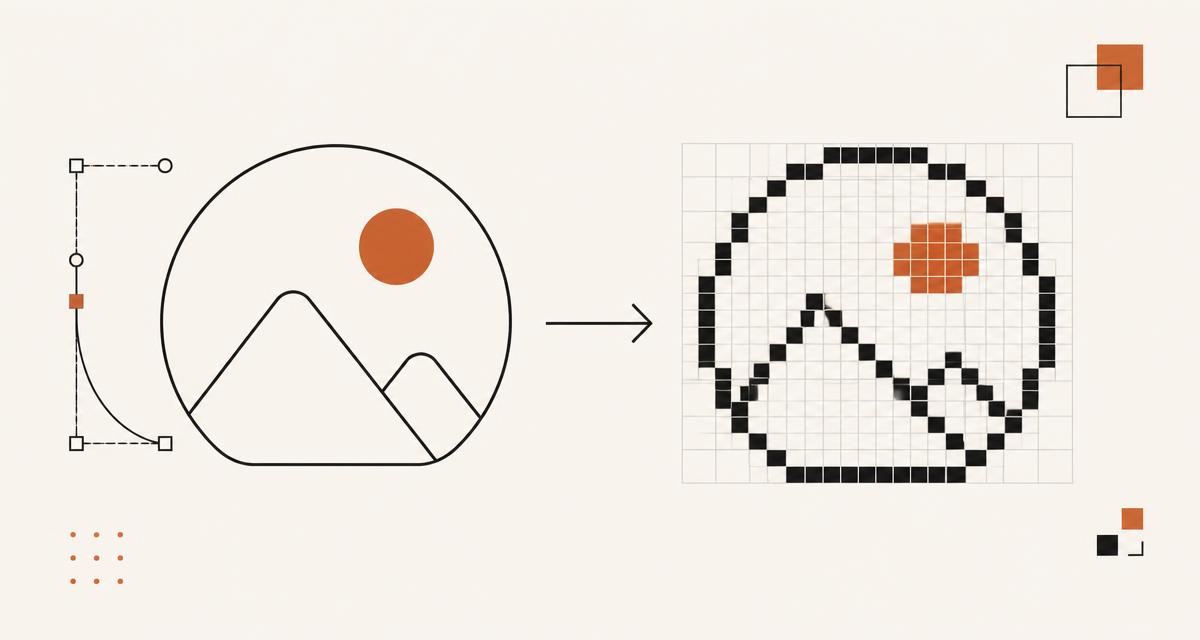
Converting an SVG to a PNG entirely in the browser, without sending the file to a server, is a common requirement for privacy-conscious tools. This post explains the canvas-based technique that makes this possible, along with the sharp edges that catch people out. The dev-tools converters at /dev-tools and the flag PNG exports at /flags both rely on variations of this approach.
The canvas and Image approach
The standard technique loads the SVG into an Image object, either by setting its src to a data URI of the SVG markup or to a blob URL created from a Blob, waits for the load event to fire, then draws that image onto a canvas element using drawImage. Once the image is on the canvas, canvas.toBlob or canvas.toDataURL produces PNG bytes that can be offered as a download without ever leaving the browser.
This works because canvas treats an SVG image source the same as any raster image for drawing purposes, letting the browser rasteriser do the actual conversion work internally.
devicePixelRatio and choosing a size
A canvas element has both a CSS display size and an internal pixel buffer size, and these can differ. To produce a PNG that looks sharp on high density displays or simply at a larger export size, set the canvas width and height attributes to the target export resolution, for example 512 by 512, rather than relying on the element style size, and draw the image scaled to fill that full pixel buffer.
devicePixelRatio matters only if you are rendering the canvas visibly on screen and want it to look crisp there; for a pure export-to-file flow, you can ignore the display device entirely and just pick the output resolution you want, such as the 32, 64, 128, 256 and 512 pixel options offered for each flag on /flags.
The tainted canvas rule
If the SVG image is loaded from a different origin without appropriate CORS headers, the browser marks the canvas as tainted once you draw that image onto it, and any attempt to read pixel data back out, including toDataURL and toBlob, throws a security error. This is a deliberate cross-origin protection, not a bug, and it means SVG to PNG conversion in the browser works reliably only for same-origin files, local file uploads, or SVGs served with permissive CORS headers.
The practical fix for user-uploaded files is to read the file with the File API and construct a blob URL locally, which is same-origin by definition and never triggers the taint restriction.
Fonts and external references
An SVG that references an external font by CSS or that links to another external resource, such as an image referenced by URL inside the SVG, may not resolve correctly once rasterised by the canvas image loader, because the browser does not always fetch and inline these dependencies during the draw operation. The safest SVGs for browser-side conversion embed everything they need directly: paths instead of text where possible, or fonts converted to outlines, and any raster references embedded as data URIs.
This is one reason flag SVGs, which are pure vector paths with no text or external references, convert reliably and consistently across browsers, whereas arbitrary SVGs with live text and web fonts are more likely to render with fallback fonts or missing glyphs.
Transparency and background colour
PNG supports an alpha channel, so a canvas that has not been explicitly filled will export with a transparent background wherever the SVG itself has no fill. This is usually what you want for an icon, but if the target use case needs a solid background, for example a square PNG for a platform that does not support transparency, fill the canvas with a background colour using fillRect before drawing the SVG image on top.
Circular flags in particular look wrong without transparency, since the square canvas would otherwise show visible corners around the circle rather than blending into the surrounding page.
Batch export
Exporting many SVGs to PNG in one operation, such as generating all 256 flags at a chosen size, repeats the same load-draw-export cycle for each file and then packages the resulting PNG blobs into a single downloadable archive using a ZIP library that runs entirely client-side. Because each conversion is asynchronous, batch export code needs to wait for each image to load before drawing it, typically processed one at a time or in small concurrent batches to avoid exhausting browser memory when working through hundreds of files.
This is exactly how the bulk export feature on /flags produces a ZIP of PNGs at a chosen resolution without uploading anything to a server.
OffscreenCanvas
OffscreenCanvas allows canvas drawing operations to run inside a Web Worker, off the main thread, which keeps the page responsive during a large batch conversion instead of blocking user interaction while hundreds of images are rasterised. Support varies slightly by browser and by whether toBlob is available on the offscreen variant, so a fallback to a regular canvas on the main thread is worth keeping for older browsers.
For a handful of conversions, the performance difference is not noticeable and a plain canvas on the main thread is simpler to reason about and debug.
Choosing this over a server-side converter
A server-side conversion service needs to receive the file, which means uploading it, processing it, and sending the result back, adding latency and raising a legitimate question about what happens to the uploaded file afterwards. A browser-side converter using canvas avoids that question entirely because the SVG never leaves the device, which is the same reasoning behind every conversion tool on /dev-tools running client-side rather than through a backend.
A worked example: converting a single file
A minimal conversion flow reads a user-selected file with the File API, creates an object URL with URL.createObjectURL, assigns that URL to an Image object, and waits for its onload event. Inside onload, a canvas is created at the desired output size, the image is drawn onto it with drawImage stretched to fill that size, and canvas.toBlob is called with image/png as the type, producing a Blob that can be turned into a download link with another object URL.
Once the conversion completes, both object URLs should be revoked with URL.revokeObjectURL to free the memory the browser allocated for them, which matters if the page performs many conversions in a session rather than just one.
Browser support notes
Canvas, the Image element, and toBlob or toDataURL for PNG export are supported in every current browser and have been for many years, so the core technique needs no fallback for a modern audience. toBlob is preferred over toDataURL where available because it avoids the overhead of base64 encoding an entire image into a string before the browser can hand it back as binary data.
OffscreenCanvas and its worker-based toBlob variant have slightly newer and less uniform support than the main-thread canvas API, so feature-detect for OffscreenCanvas before relying on it and fall back to main-thread conversion when it is missing.
Accessibility considerations
The conversion process itself has no visible UI beyond a button and a progress indicator, but that progress indicator matters more than it might seem for batch conversions of many files, since a long-running operation with no feedback reads as a frozen page to anyone relying on visual cues, and a plain text status update read by a screen reader, such as announcing progress through an aria-live region, keeps users informed regardless of how they perceive the page.
Once the PNG is produced, the download link or button should have a clear accessible name describing what is being downloaded, such as the original filename with a .png extension, rather than a generic label like "Download" repeated for every file in a batch.
FAQ
Why does my exported PNG have a black background instead of transparency? The canvas was likely filled with a solid colour before drawing the image, or the SVG itself has an opaque background rectangle; check both the canvas fill code and the SVG source.
Can this approach convert PNG or JPEG to SVG? No, rasterising an SVG to PNG is a one-way operation; going the other way requires vector tracing, which is a fundamentally different and much less exact process not covered by the canvas technique described here.
Why does toBlob return null occasionally? This can happen if the canvas is tainted by a cross-origin image drawn without CORS permission, or if the browser ran out of memory for an extremely large canvas size; check the console for a security error first.
Questions about the tools in this guide
Short answers about the hubs this article touches, each linking straight to the tool.